> ## Documentation Index
> Fetch the complete documentation index at: https://help.mercury360.com/llms.txt
> Use this file to discover all available pages before exploring further.
# Switch Account & Disconnect
> Switch to a different connected email account or disconnect email integration entirely.
Use this page to change the connected email account used for hiring communication, or to disconnect email integration if you no longer want emails synced in the system.
## When to use this
Use this when:
* You need to use a different email account
* You connected the wrong account
* You want to stop email sync
* Hiring ownership has changed
Don’t change account setup unless you specifically need to. Switching or disconnecting affects hiring communication across the system.
## Switch email account
Use this when you want to replace the currently connected email account with a different one.
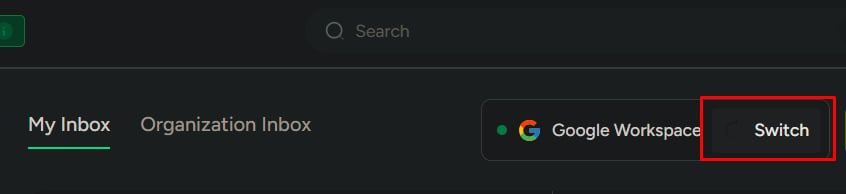
Go to **Emails**.
Click **Switch**.
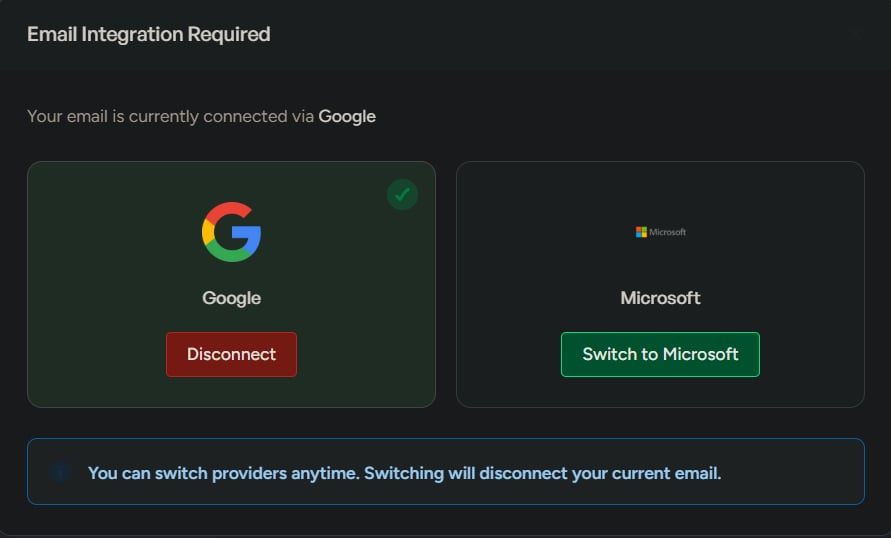
Choose a provider: **Google** or **Microsoft**.
Sign in to the new account and allow access when prompted.
 ### What happens next
* The new email account is connected
* The previous account is replaced
* All future outgoing emails use the new account
Switching accounts changes the mailbox used for all outgoing communication. Verify you’re connecting the correct company inbox before continuing.
## Disconnect email
Use this when you want to remove email integration and stop syncing.
Go to **Settings**.
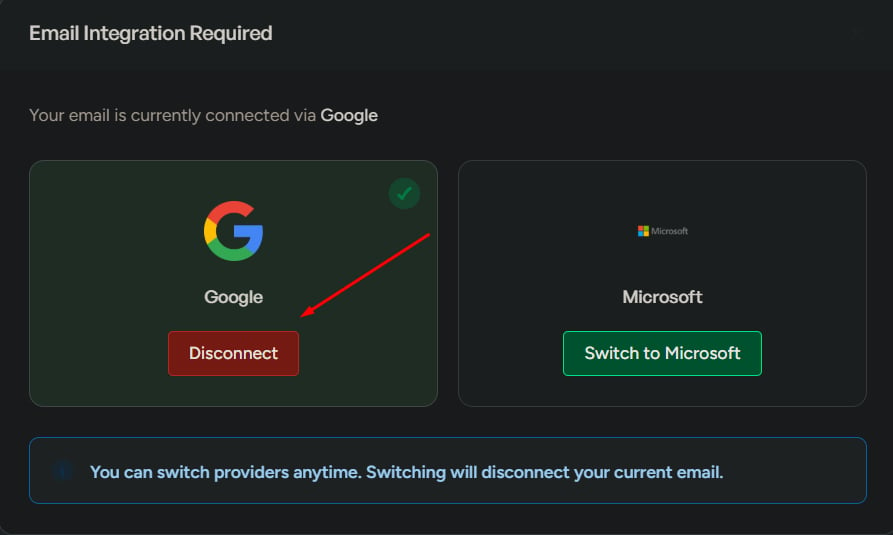
Find the connected email account.
Click **Disconnect**.
Confirm the action.
### What happens next
* The new email account is connected
* The previous account is replaced
* All future outgoing emails use the new account
Switching accounts changes the mailbox used for all outgoing communication. Verify you’re connecting the correct company inbox before continuing.
## Disconnect email
Use this when you want to remove email integration and stop syncing.
Go to **Settings**.
Find the connected email account.
Click **Disconnect**.
Confirm the action.
 ### What happens next
* Email sync stops immediately
* Inbox and sending features stop working
* Previously synced emails remain visible, but won’t update
Disconnecting stops all email activity inside the system until an account is connected again.
## What to watch for
* Disconnecting stops all email activity in the system
* Switching to the wrong account can break candidate communication
* Using a personal email reduces team visibility and shared context
This impacts all hiring communication. Always verify you’re using the correct company mailbox.
## What this is not for
Do not use Switch/Disconnect for:
* Temporary email issues
* Missing emails (use **Sync** instead)
* Using multiple email accounts at the same time
This is only for changing or removing the connected account.
### What happens next
* Email sync stops immediately
* Inbox and sending features stop working
* Previously synced emails remain visible, but won’t update
Disconnecting stops all email activity inside the system until an account is connected again.
## What to watch for
* Disconnecting stops all email activity in the system
* Switching to the wrong account can break candidate communication
* Using a personal email reduces team visibility and shared context
This impacts all hiring communication. Always verify you’re using the correct company mailbox.
## What this is not for
Do not use Switch/Disconnect for:
* Temporary email issues
* Missing emails (use **Sync** instead)
* Using multiple email accounts at the same time
This is only for changing or removing the connected account.