> ## Documentation Index
> Fetch the complete documentation index at: https://help.mercury360.com/llms.txt
> Use this file to discover all available pages before exploring further.
# Report Issue
> Report bugs or feature requests and track their status updates from support.
Use **Report Issue** to submit problems or feature requests and monitor progress as support reviews and responds.
## What this helps you do
* Raise issues with the system
* Monitor progress of reported issues
* Receive updates from support
## When to use this
Use this when you need to:
* Report a bug or system issue
* Request a feature
* Track the status of a reported issue
## Open Report Issue
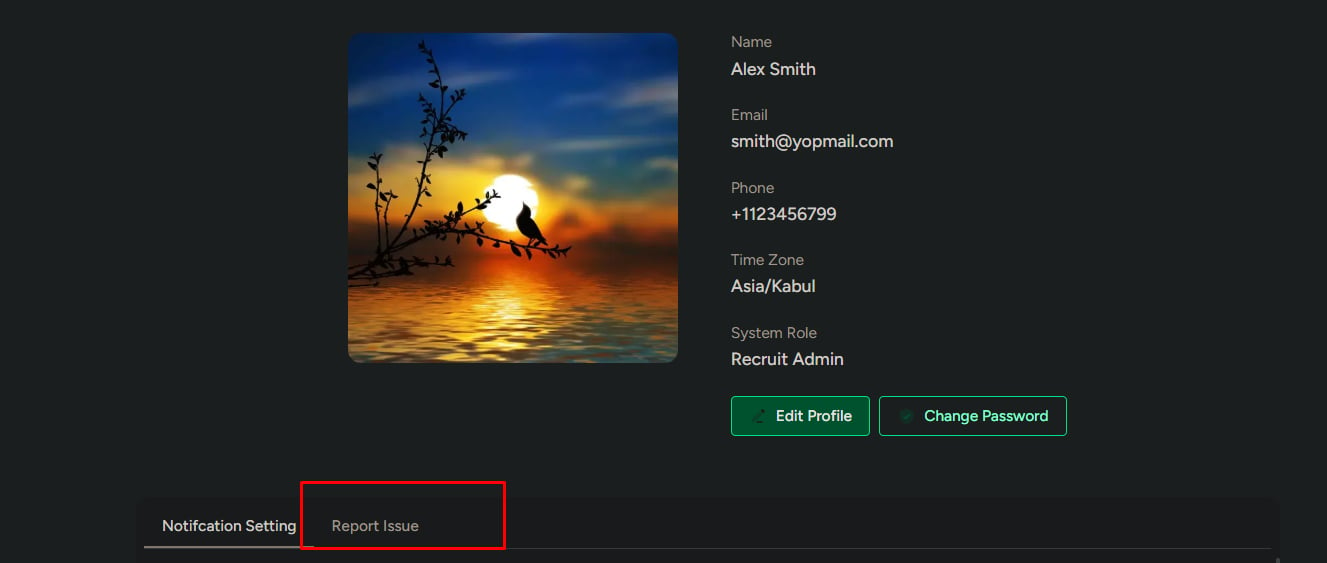
Go to your **Profile**.
Select **Report Issue**.
You’ll land on the issue list page.
 ## View reported issues
All submitted issues are listed here. Each issue shows:
* **Issue category**
* **Status**
* **Date created**
Use this list to review what you’ve already reported and where each item stands.
## Status types
Issues can appear in one of the following states:
* **Open**
* **In progress**
* **Resolved**
* **Unresolved**
* **Dismissed**
Use the status to understand whether support is actively working on the issue or has closed it with a resolution or response.
## Filter issues
Use filters to quickly find specific reports.
Click **Filter**.
Select one or more filters:
* **Issue category**
* **Status**
* **Date range** (From / To)
Click **Apply Filter**.
## View reported issues
All submitted issues are listed here. Each issue shows:
* **Issue category**
* **Status**
* **Date created**
Use this list to review what you’ve already reported and where each item stands.
## Status types
Issues can appear in one of the following states:
* **Open**
* **In progress**
* **Resolved**
* **Unresolved**
* **Dismissed**
Use the status to understand whether support is actively working on the issue or has closed it with a resolution or response.
## Filter issues
Use filters to quickly find specific reports.
Click **Filter**.
Select one or more filters:
* **Issue category**
* **Status**
* **Date range** (From / To)
Click **Apply Filter**.
 ## Create a new issue
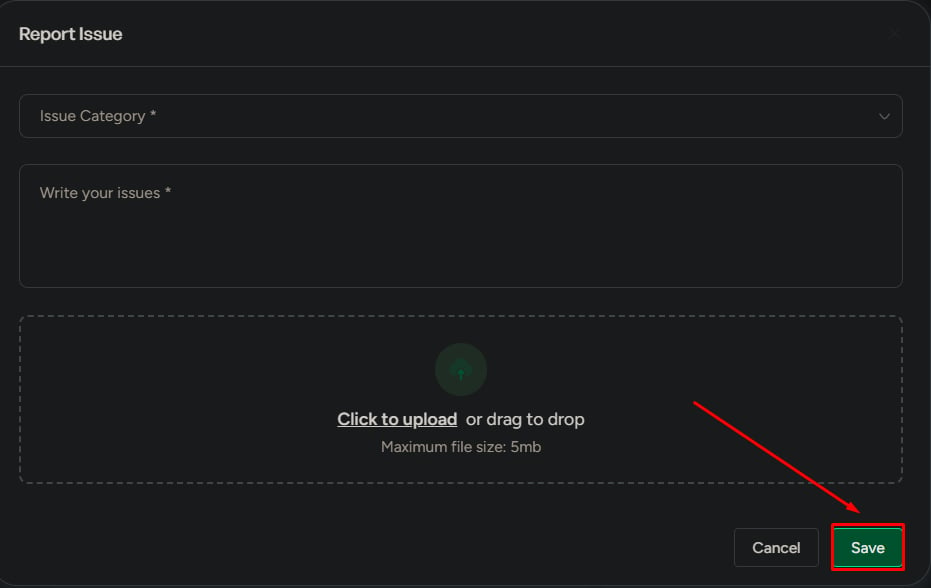
Click **Report Issue**.
Fill in:
* **Issue category** (required)
* **Description** (required, minimum 10 characters)
* **File upload** (optional, max **5 MB**)
Click **Save**.
Include clear steps to reproduce, expected vs actual behavior, and screenshots when possible to speed up resolution.
## Create a new issue
Click **Report Issue**.
Fill in:
* **Issue category** (required)
* **Description** (required, minimum 10 characters)
* **File upload** (optional, max **5 MB**)
Click **Save**.
Include clear steps to reproduce, expected vs actual behavior, and screenshots when possible to speed up resolution.

 ## What happens after submission
After you submit:
* The issue is created with **Open** status
* Support reviews the issue
* The status is updated as progress is made
* Once resolved, the issue is closed with a response
## What to be careful about
* Vague descriptions slow down resolution
* Choosing the wrong category can delay handling
* Missing details can lead to incomplete support responses
Be specific and include relevant context (what you were doing, where it happened, and what you expected to happen).
## What happens after submission
After you submit:
* The issue is created with **Open** status
* Support reviews the issue
* The status is updated as progress is made
* Once resolved, the issue is closed with a response
## What to be careful about
* Vague descriptions slow down resolution
* Choosing the wrong category can delay handling
* Missing details can lead to incomplete support responses
Be specific and include relevant context (what you were doing, where it happened, and what you expected to happen).