> ## Documentation Index
> Fetch the complete documentation index at: https://help.mercury360.com/llms.txt
> Use this file to discover all available pages before exploring further.
# Manage Notifications and Activity
> View, filter, and manage notifications (what needs attention) and activity (what already happened) across the system.
Use the **Notifications** page to review system updates in detail, filter by context (job, candidate, employee), and separate actionable alerts from historical activity.
## What you can manage here
This page includes two types of updates:
* **Notifications**: alerts and updates that may require attention
* **Activity**: system actions and changes (audit-style history)
**Notifications = what needs attention**\
**Activity = what already happened**
## When to use this
Use this when you need to:
* Find a specific notification
* Filter updates by **job**, **candidate**, **employee**, or **date range**
* Track system activity over time
* Separate **read** and **unread** notifications
## Open the Notifications page
Click the **bell** icon in the top bar.
Click **View All**.
You’ll be redirected to the full Notifications page.
## Page structure
The page has two main areas:
### Left panel
The left panel controls *what* you’re viewing and *how* results are filtered.
It includes:
* Tabs:
* **Notifications**
* **Activity**
* Filters:
* **Job**
* **Candidate**
* **Employee**
* **Date range**
Use these controls to narrow down what appears on the right.
### Right panel
The right panel displays results based on:
* The selected tab (**Notifications** or **Activity**)
* Any filters applied in the left panel
## Notifications tab
Use this tab to manage system notifications.
### View options
Filter by notification status:
* **All**
* **Read**
* **Unread**
 ### Mark all as read
Use **Mark all as read** to clear unread items.
After marking all as read, notifications will move to the **Read** state and the unread list may be empty.
### Mark all as read
Use **Mark all as read** to clear unread items.
After marking all as read, notifications will move to the **Read** state and the unread list may be empty.
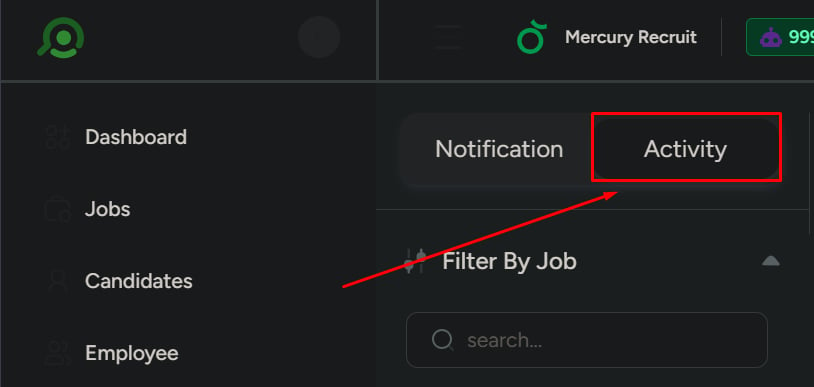
 ## Activity tab
Use this tab to track system actions and changes, such as:
* Job updates
* Candidate movements between stages
* Other updates across the system
Use **Activity** to understand what happened in the system (history), not just what needs attention.
## Activity tab
Use this tab to track system actions and changes, such as:
* Job updates
* Candidate movements between stages
* Other updates across the system
Use **Activity** to understand what happened in the system (history), not just what needs attention.
 ## Use filters
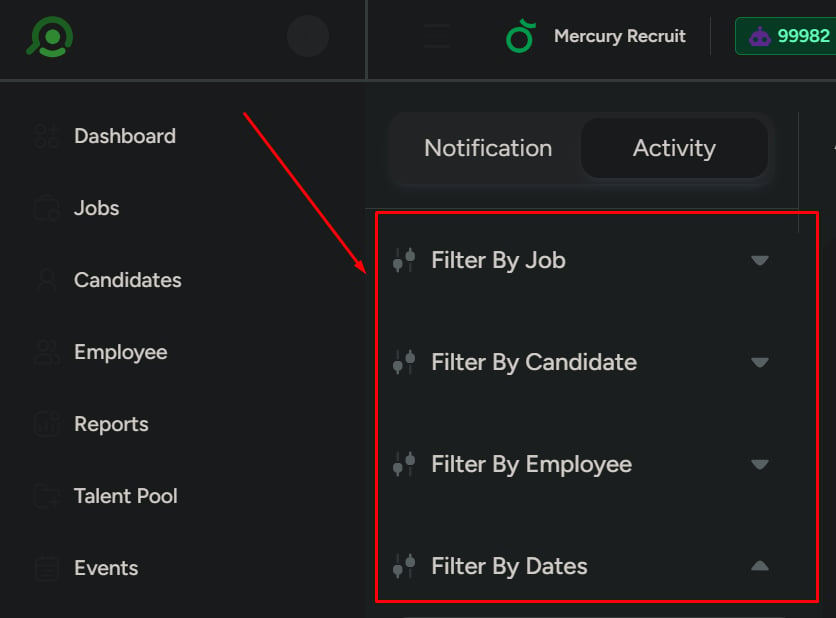
Filters help narrow down results when the list is large or when you’re looking for something specific.
You can filter by:
* **Job**
* **Candidate**
* **Employee**
* **Date range**
If the page feels cluttered, start with a **date range** and then add **job** or **candidate** to pinpoint the exact update.
## Use filters
Filters help narrow down results when the list is large or when you’re looking for something specific.
You can filter by:
* **Job**
* **Candidate**
* **Employee**
* **Date range**
If the page feels cluttered, start with a **date range** and then add **job** or **candidate** to pinpoint the exact update.
 ## What to be careful about
* Not using filters can lead to cluttered views and slower searching
* Ignoring unread notifications can result in missed actions
* Confusing **Activity** with **Notifications** can lead to the wrong follow-up steps
Before taking action, confirm whether you’re viewing **Notifications** (actionable) or **Activity** (historical).
## What to be careful about
* Not using filters can lead to cluttered views and slower searching
* Ignoring unread notifications can result in missed actions
* Confusing **Activity** with **Notifications** can lead to the wrong follow-up steps
Before taking action, confirm whether you’re viewing **Notifications** (actionable) or **Activity** (historical).