> ## Documentation Index
> Fetch the complete documentation index at: https://help.mercury360.com/llms.txt
> Use this file to discover all available pages before exploring further.
# Manage Employees | Search, Filter, and Update Employee Records
> Search, filter, review, and update active employee records from the People Directory.
The **People Directory** is where you manage active employee records across your organization. Use it to find people quickly, review status and department information, and keep employee records accurate.
This page is for managing existing employees. To track new joiners through onboarding, see [Onboarding](/employees/onboarding).
## When to use this page
Open the **People Directory** when you need to:
* Find **employees quickly**
* Review **status, department, or creation date**
* Update employee records
* Surface incomplete draft profiles
## Open the People Directory
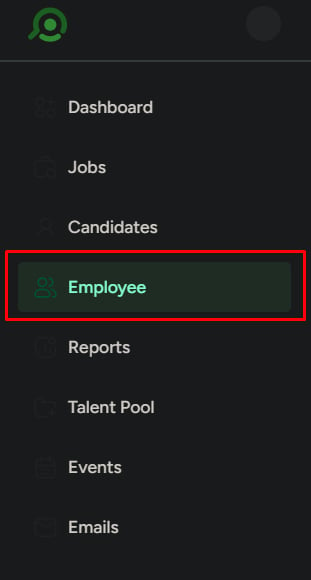
Click **Employees** in the left navigation menu.
Select the **People Directory** tab. This is the main employee management area for active records.
 ## What each row shows
Use the list to identify and select the right employee at a glance.
| Column | What it tells you |
| ------------------ | ------------------------------------------------ |
| **Name** | Employee’s full name |
| **Contact number** | Primary phone number |
| **Department** | Team they belong to |
| **Status** | Whether the record is Active, Draft, or Inactive |
| **Date created** | When the employee record was added |
| **Edit action** | Quick shortcut to update employee details |
## Search employees
Use search when you know who you’re looking for.
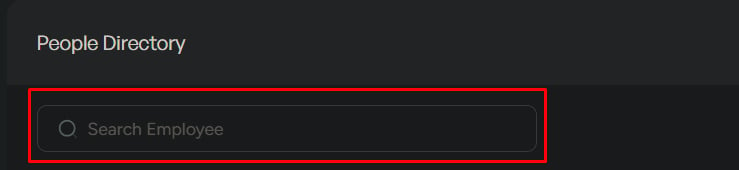
Type the **employee name** in the search bar. Results update instantly.
## What each row shows
Use the list to identify and select the right employee at a glance.
| Column | What it tells you |
| ------------------ | ------------------------------------------------ |
| **Name** | Employee’s full name |
| **Contact number** | Primary phone number |
| **Department** | Team they belong to |
| **Status** | Whether the record is Active, Draft, or Inactive |
| **Date created** | When the employee record was added |
| **Edit action** | Quick shortcut to update employee details |
## Search employees
Use search when you know who you’re looking for.
Type the **employee name** in the search bar. Results update instantly.
 ## Filter employees
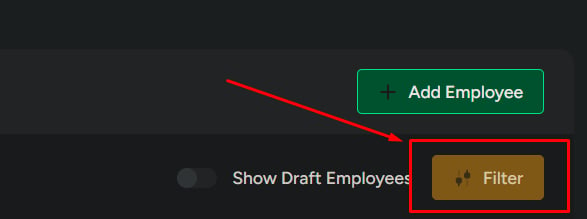
Click **Filter** to narrow the list.
| Filter | Use when |
| ---------------- | --------------------------------------------- |
| **Department** | Focusing on a specific team |
| **Status** | Checking active, draft, or inactive employees |
| **Date created** | Reviewing when employee records were added |
Combine filters to slice large directories—for example, **Department: Engineering** + **Date created: last 30 days** to find recent engineering hires.
## Filter employees
Click **Filter** to narrow the list.
| Filter | Use when |
| ---------------- | --------------------------------------------- |
| **Department** | Focusing on a specific team |
| **Status** | Checking active, draft, or inactive employees |
| **Date created** | Reviewing when employee records were added |
Combine filters to slice large directories—for example, **Department: Engineering** + **Date created: last 30 days** to find recent engineering hires.
 ## Show draft employees
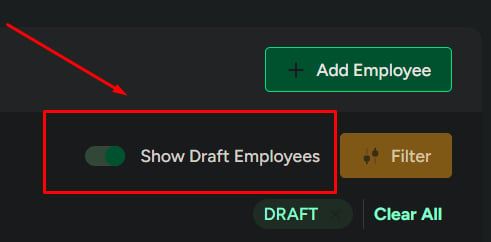
Toggle **Show Draft Employees** to surface incomplete profiles.
Draft employees are not fully active records. They won’t appear in HR workflows or be available for assignment until published.
## Show draft employees
Toggle **Show Draft Employees** to surface incomplete profiles.
Draft employees are not fully active records. They won’t appear in HR workflows or be available for assignment until published.
 ## Actions from the list
Click **Edit** to correct or update details. Only update information that is confirmed and accurate.
Click **Add Employee** to create a new employee record.
## Actions from the list
Click **Edit** to correct or update details. Only update information that is confirmed and accurate.
Click **Add Employee** to create a new employee record.

 ## Related
Create a new employee record step by step.
Open a profile to review or update full employee records.
## Related
Create a new employee record step by step.
Open a profile to review or update full employee records.