> ## Documentation Index
> Fetch the complete documentation index at: https://help.mercury360.com/llms.txt
> Use this file to discover all available pages before exploring further.
# View Employee Details | Review and Update Employee Records
> Review, update, and take action on a single employee record from the People Directory.
The employee details page is where you review, update, and take action on a single employee. Open it whenever a record needs verification or changes.
Always review details before making changes—updates affect HR records immediately.
## Open employee details
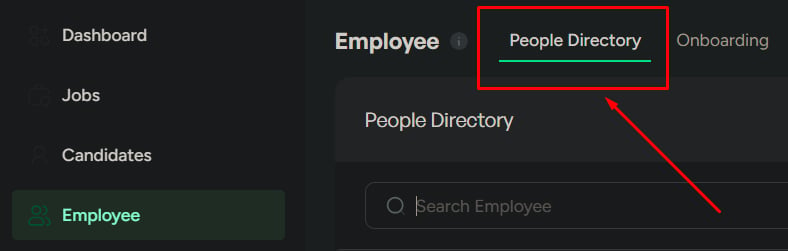
Go to **Employees → People Directory**.
Click any employee to open their details page.
 ## When to use this page
Use this page when you need to:
* Review employee details
* Update employee information
* Access employee documents
* Disable an employee record
## Top summary (quick view)
The top of the page shows key identity fields:
* Name
* Work email
* Phone number
* Department
It also provides quick actions:
* **Edit details**
* **View offer & documents**
* **Disable employee**
Use this area for quick identification and immediate actions without scrolling.
## Where to find information
Use this table to locate the right section quickly:
| Section | What you'll find |
| --------------------------------- | ---------------------------------- |
| **Personal details** | Personal information |
| **Professional details** | Job and role details |
| **Background and qualifications** | Education, work experience, skills |
| **Documents and records** | Legal documents (under **More**) |
## Key actions
Update confirmed employee information. Changes apply immediately.
Access offer letters and uploaded documents for verification and record checks.
Mark an employee inactive while retaining records for audit and history.
### Edit details
Use when employee information needs updating.
Open the employee record in edit mode.
Change only information that’s confirmed and accurate.
Save to apply updates immediately to HR records and reports.
Changes directly affect employee records. Incorrect updates can break HR data and reporting—always verify before saving.
### View offer & documents
Use when you need to access employee-related documents:
* Offer letters
* Uploaded documents
### Disable employee
Use when the employee should no longer be active.
* Employee is marked as **inactive**
* Removed from the **active employee view**
* Employee data is **retained** for records
* Employee has left the organization
* Employee should no longer be active in the system
Disabling is not the same as deleting. Records remain accessible for audit, but the employee won’t appear in active views or workflows.
## When to use this page
Use this page when you need to:
* Review employee details
* Update employee information
* Access employee documents
* Disable an employee record
## Top summary (quick view)
The top of the page shows key identity fields:
* Name
* Work email
* Phone number
* Department
It also provides quick actions:
* **Edit details**
* **View offer & documents**
* **Disable employee**
Use this area for quick identification and immediate actions without scrolling.
## Where to find information
Use this table to locate the right section quickly:
| Section | What you'll find |
| --------------------------------- | ---------------------------------- |
| **Personal details** | Personal information |
| **Professional details** | Job and role details |
| **Background and qualifications** | Education, work experience, skills |
| **Documents and records** | Legal documents (under **More**) |
## Key actions
Update confirmed employee information. Changes apply immediately.
Access offer letters and uploaded documents for verification and record checks.
Mark an employee inactive while retaining records for audit and history.
### Edit details
Use when employee information needs updating.
Open the employee record in edit mode.
Change only information that’s confirmed and accurate.
Save to apply updates immediately to HR records and reports.
Changes directly affect employee records. Incorrect updates can break HR data and reporting—always verify before saving.
### View offer & documents
Use when you need to access employee-related documents:
* Offer letters
* Uploaded documents
### Disable employee
Use when the employee should no longer be active.
* Employee is marked as **inactive**
* Removed from the **active employee view**
* Employee data is **retained** for records
* Employee has left the organization
* Employee should no longer be active in the system
Disabling is not the same as deleting. Records remain accessible for audit, but the employee won’t appear in active views or workflows.
 ## Related
Search, filter, and act on employees from the directory.
Create a new employee record.
## Related
Search, filter, and act on employees from the directory.
Create a new employee record.