> ## Documentation Index
> Fetch the complete documentation index at: https://help.mercury360.com/llms.txt
> Use this file to discover all available pages before exploring further.
# Compose Email
> Send stage-based emails to one or more candidates, linked to a job and their hiring stage.
Use **Compose Email** to send structured hiring communication to candidates based on their **job** and **current stage** in the pipeline. This is best for stage-based messaging and consistent outreach across multiple candidates.
Emails sent from here are linked to candidates and their hiring stage, helping you track communication history in context.
## When to use this
Use this when:
* You need to contact multiple candidates at once
* You want to send stage-based communication (for example, interview instructions)
* You want consistent messaging using templates
Do not use Compose Email for one-off or unrelated emails. It’s designed for structured hiring communication.
## Start composing
Go to **Emails**.
Click **Compose Email**.
Follow the guided step-by-step flow.
 ## Step 1: Select a job
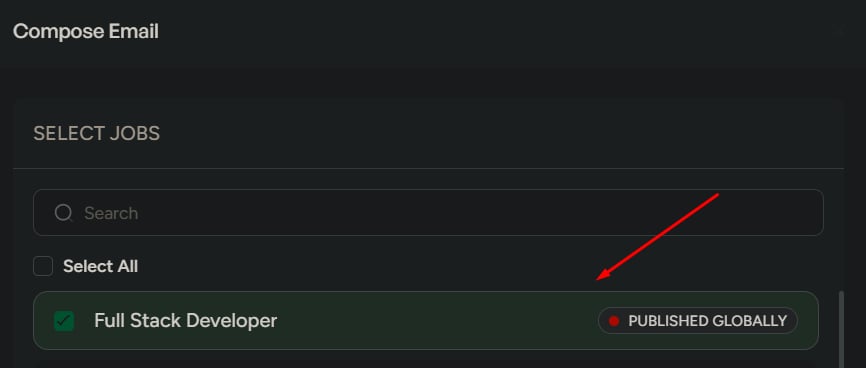
Choose one or more jobs. This defines which candidates are available.
If you select the wrong job, your stage and candidate selection will be incorrect.
## Step 1: Select a job
Choose one or more jobs. This defines which candidates are available.
If you select the wrong job, your stage and candidate selection will be incorrect.
 ## Step 2: Select a stage
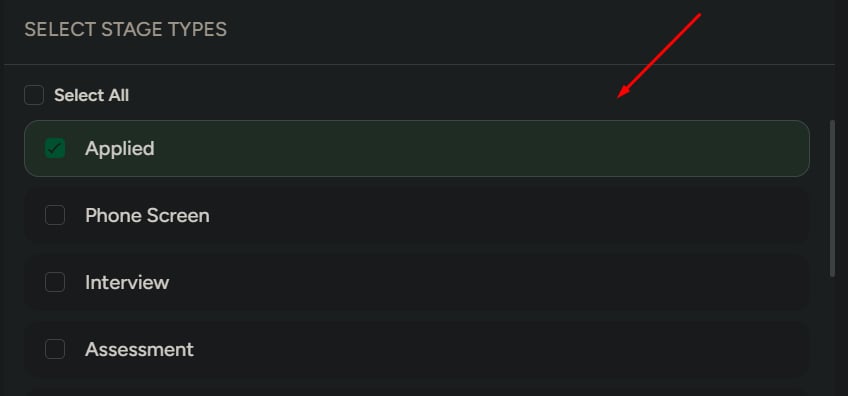
Choose one or more stages to filter candidates by their pipeline stage:
* Applied
* Phone screen
* Interview
* Assessment
* Document verification
* Offered
* Hired
* Disqualified
## Step 2: Select a stage
Choose one or more stages to filter candidates by their pipeline stage:
* Applied
* Phone screen
* Interview
* Assessment
* Document verification
* Offered
* Hired
* Disqualified
 ## Step 3: Select candidates
Choose the candidates you want to email. You can select multiple candidates.
The same email will be sent to all selected candidates. Review your selection carefully.
## Step 4: Review selection
Before writing the email, confirm:
* Selected jobs
* Selected stages
* Selected candidates
Check this carefully before moving forward.
## Step 5: Write the email
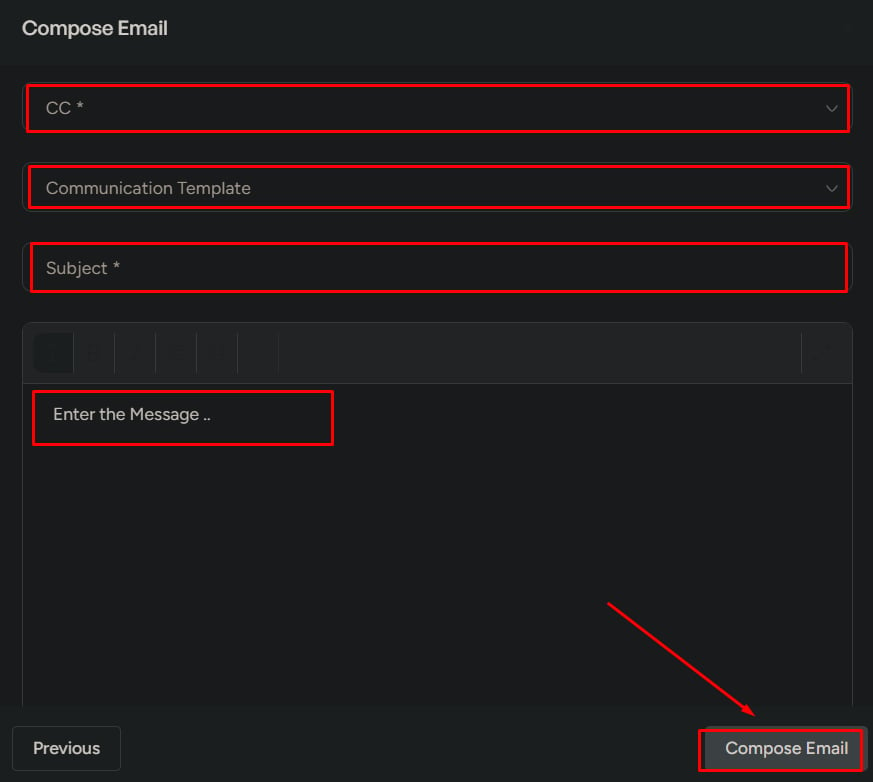
Fill in:
* **CC**
* **Template** (optional)
* **Subject**
* **Message**
* **Attachments** (optional, max **5 MB**)
Templates help maintain consistent messaging across stages—review and adjust content before sending.
## Step 6: Send the email
Click **Compose Email** to send.
The email is sent to all selected candidates.
## Step 3: Select candidates
Choose the candidates you want to email. You can select multiple candidates.
The same email will be sent to all selected candidates. Review your selection carefully.
## Step 4: Review selection
Before writing the email, confirm:
* Selected jobs
* Selected stages
* Selected candidates
Check this carefully before moving forward.
## Step 5: Write the email
Fill in:
* **CC**
* **Template** (optional)
* **Subject**
* **Message**
* **Attachments** (optional, max **5 MB**)
Templates help maintain consistent messaging across stages—review and adjust content before sending.
## Step 6: Send the email
Click **Compose Email** to send.
The email is sent to all selected candidates.
 ## What to watch for
Common mistakes to avoid:
* Wrong candidates selected
* Wrong stage selected
* Sending a bulk email without review
* Unclear or incorrect messaging
## What this is not for
Do not use Compose Email for:
* Internal team communication
* Personal emails
* One-to-one casual messaging
Compose Email is intended for structured hiring communication linked to jobs and candidates.
## What to watch for
Common mistakes to avoid:
* Wrong candidates selected
* Wrong stage selected
* Sending a bulk email without review
* Unclear or incorrect messaging
## What this is not for
Do not use Compose Email for:
* Internal team communication
* Personal emails
* One-to-one casual messaging
Compose Email is intended for structured hiring communication linked to jobs and candidates.