> ## Documentation Index
> Fetch the complete documentation index at: https://help.mercury360.com/llms.txt
> Use this file to discover all available pages before exploring further.
# Manage Candidates in a Job | Move, Evaluate, and Communicate
> Move, snooze, disqualify, evaluate, and communicate with candidates inside a specific job's pipeline.
When you're working on a specific role, candidate actions taken inside a job are scoped to that job’s pipeline. This page covers what you can do from the job pipeline view.
## What you can do
Advance candidates through stages, snooze them, or disqualify them for this job.
Add evaluations and notes to keep decision-making consistent across the team.
Transfer candidates between roles without losing context.
Email candidates, schedule events, or send tasks from the pipeline.
## Open a candidate
Go to **Jobs** and open the role you’re working on.
Click any candidate in any stage to open their details.
## Update candidate progress
Use these actions to manage the candidate inside the current job pipeline.
### Move a candidate
Move candidates between stages in the pipeline. This is the most common action—use it whenever a candidate clears a step.
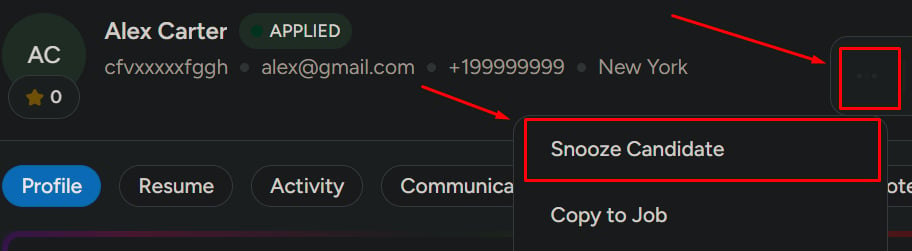
 ### Snooze a candidate
Temporarily pause a candidate without losing context. Useful when you're waiting on documents or scheduling.
### Snooze a candidate
Temporarily pause a candidate without losing context. Useful when you're waiting on documents or scheduling.
 ### Disqualify a candidate
Mark the candidate as not suitable for **this job only**. They remain available for other opportunities.
Disqualifying is scoped to the current job. To restrict a candidate across all jobs, use **Blacklist**.
### Disqualify a candidate
Mark the candidate as not suitable for **this job only**. They remain available for other opportunities.
Disqualifying is scoped to the current job. To restrict a candidate across all jobs, use **Blacklist**.
 ## Evaluate and document
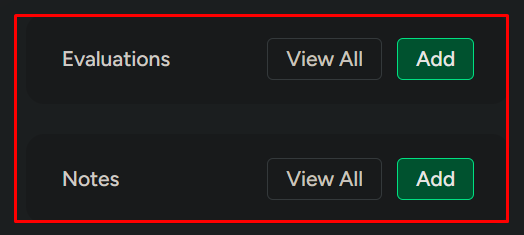
Add feedback or review evaluations submitted by your team. Aggregate scores roll up automatically.
Add internal notes only your team can see.
## Evaluate and document
Add feedback or review evaluations submitted by your team. Aggregate scores roll up automatically.
Add internal notes only your team can see.
 ## Manage candidate placement across jobs
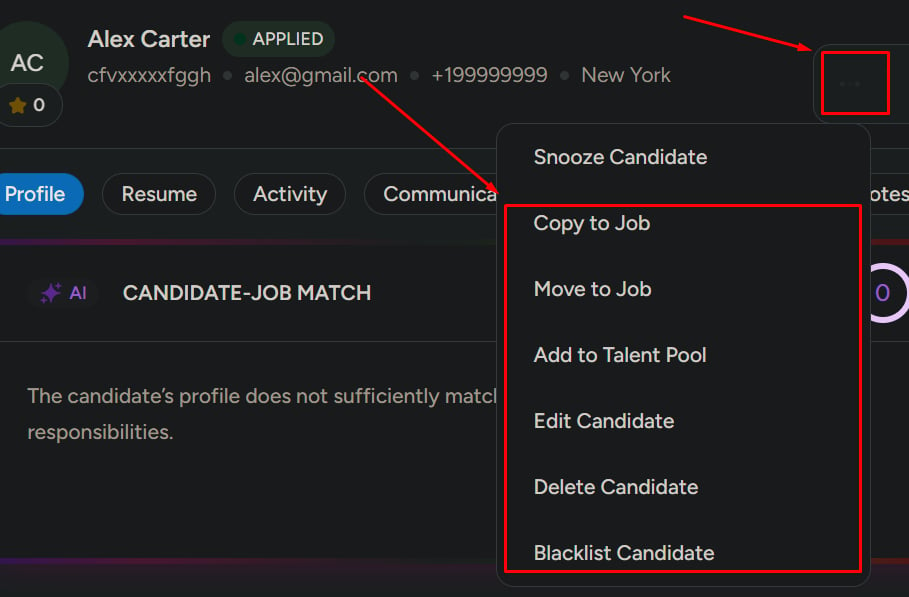
Mercury gives you two ways to move a candidate between jobs—choose carefully.
**Removes** the candidate from the current job and places them in the new job.
Use this when the candidate is no longer right for the current role but fits another.
**Keeps** the candidate in the current job and adds them to the new one.
Use this when the candidate could succeed in either role.
**Moving removes the candidate from the current pipeline.** Once moved, they no longer appear in this job’s stages or analytics.
### Add to talent pool
Save the candidate for future opportunities, even if they don't fit any current role.
## Edit or remove a candidate
Update profile details—name, contact, experience, and skills.
Remove the candidate from the entire system. **This cannot be undone.**
## Blacklist a candidate
Blacklist restricts the candidate from future hiring across **all** jobs in your workspace.
See the differences between disqualified, blacklisted, and inactive—and when to use each.
## Manage candidate placement across jobs
Mercury gives you two ways to move a candidate between jobs—choose carefully.
**Removes** the candidate from the current job and places them in the new job.
Use this when the candidate is no longer right for the current role but fits another.
**Keeps** the candidate in the current job and adds them to the new one.
Use this when the candidate could succeed in either role.
**Moving removes the candidate from the current pipeline.** Once moved, they no longer appear in this job’s stages or analytics.
### Add to talent pool
Save the candidate for future opportunities, even if they don't fit any current role.
## Edit or remove a candidate
Update profile details—name, contact, experience, and skills.
Remove the candidate from the entire system. **This cannot be undone.**
## Blacklist a candidate
Blacklist restricts the candidate from future hiring across **all** jobs in your workspace.
See the differences between disqualified, blacklisted, and inactive—and when to use each.
 ## Communicate with the candidate
You can use three quick communication actions:
* **Send email** — direct, tracked correspondence
* **Schedule event** — interview, screening, or meeting
* **Send task** — assessment, document request, or homework
## Communicate with the candidate
You can use three quick communication actions:
* **Send email** — direct, tracked correspondence
* **Schedule event** — interview, screening, or meeting
* **Send task** — assessment, document request, or homework
 ## Related
Full tour of the candidate profile and all available actions.
Browse all candidates across jobs, with powerful search and filters
## Related
Full tour of the candidate profile and all available actions.
Browse all candidates across jobs, with powerful search and filters