> ## Documentation Index
> Fetch the complete documentation index at: https://help.mercury360.com/llms.txt
> Use this file to discover all available pages before exploring further.
# Manage Candidates | Search, Filter, and Organize Applicants
> View, search, filter, and organize candidates from one place.
The **Candidates** page helps you view, search, and organize candidates across your hiring workflow. Use it to quickly find profiles, review candidate progress, compare applicants, and manage restricted candidates.
## When to use this page
Use this page when you need to:
* Find a specific candidate
* Review candidate progress
* Compare multiple candidates
* Separate active candidates from restricted candidates
* Open a candidate profile for detailed actions
## Open Candidates
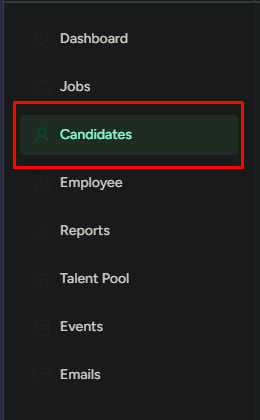
Click **Candidates** from the left navigation menu.
A list of candidates appears with key details for quick scanning and comparison.
 ## Candidate information
Each candidate row shows key details.
| Detail | What it tells you |
| -------------------- | -------------------------------------------------- |
| **Name** | Candidate’s full name |
| **Job** | Role the candidate is being considered for |
| **Stage** | Current hiring pipeline stage |
| **ATS Score** | Match score calculated from the candidate’s resume |
| **Evaluation Score** | Rating from the hiring team |
| **Applied Source** | Where the candidate came from |
| **Applied Date** | When the candidate applied or was added |
Use this information to quickly scan, compare, and prioritize candidates.
## Candidate status
Restricted candidates who cannot be considered for hiring while the blacklist is active.
Candidates who were previously blacklisted but have been restored and are active again.
Shows candidates affected by blacklist or disqualification rules so you can review restricted profiles.
## Search candidates
Use search when you know the candidate’s name.
Type the candidate’s name in the search bar.
Results update automatically as you type.
## Filter candidates
Use filters when the candidate list is large.
Click **Filter**.
Choose the criteria that match what you’re looking for.
| Filter | Use when |
| -------------------------- | -------------------------------------- |
| **Department** | Hiring for a specific team |
| **Keywords** | Searching for specific skills or roles |
| **Applied source** | Tracking where candidates came from |
| **Applied dates** | Reviewing recent or older applications |
| **ATS score range** | Focusing on best-matched candidates |
| **Evaluation score range** | Reviewing shortlisted candidates |
## Candidate information
Each candidate row shows key details.
| Detail | What it tells you |
| -------------------- | -------------------------------------------------- |
| **Name** | Candidate’s full name |
| **Job** | Role the candidate is being considered for |
| **Stage** | Current hiring pipeline stage |
| **ATS Score** | Match score calculated from the candidate’s resume |
| **Evaluation Score** | Rating from the hiring team |
| **Applied Source** | Where the candidate came from |
| **Applied Date** | When the candidate applied or was added |
Use this information to quickly scan, compare, and prioritize candidates.
## Candidate status
Restricted candidates who cannot be considered for hiring while the blacklist is active.
Candidates who were previously blacklisted but have been restored and are active again.
Shows candidates affected by blacklist or disqualification rules so you can review restricted profiles.
## Search candidates
Use search when you know the candidate’s name.
Type the candidate’s name in the search bar.
Results update automatically as you type.
## Filter candidates
Use filters when the candidate list is large.
Click **Filter**.
Choose the criteria that match what you’re looking for.
| Filter | Use when |
| -------------------------- | -------------------------------------- |
| **Department** | Hiring for a specific team |
| **Keywords** | Searching for specific skills or roles |
| **Applied source** | Tracking where candidates came from |
| **Applied dates** | Reviewing recent or older applications |
| **ATS score range** | Focusing on best-matched candidates |
| **Evaluation score range** | Reviewing shortlisted candidates |
 ## Filter by status
Control which candidates are visible.
* Toggle **Show Disqualified Candidates** to show or hide restricted candidates
* Open **Blacklisted Candidates** to view only restricted candidates
Status filters help separate active candidates from restricted profiles while keeping restricted records available for review.
## Filter by status
Control which candidates are visible.
* Toggle **Show Disqualified Candidates** to show or hide restricted candidates
* Open **Blacklisted Candidates** to view only restricted candidates
Status filters help separate active candidates from restricted profiles while keeping restricted records available for review.
 ## Remove a candidate from the blacklist
Use this when a candidate should be allowed back into hiring.
Go to **Blacklisted Candidates** from the candidate status view.
Select the candidate and remove them from the blacklist.
The candidate becomes active again, but they are not automatically prioritized or added back into hiring decisions.
## Remove a candidate from the blacklist
Use this when a candidate should be allowed back into hiring.
Go to **Blacklisted Candidates** from the candidate status view.
Select the candidate and remove them from the blacklist.
The candidate becomes active again, but they are not automatically prioritized or added back into hiring decisions.
 Removing a candidate from the blacklist only restores eligibility. It does not automatically add them back to a job pipeline or move them forward in hiring.
## Open a candidate profile
Click any candidate from the list.
The full candidate profile opens with detailed information and available actions.
Removing a candidate from the blacklist only restores eligibility. It does not automatically add them back to a job pipeline or move them forward in hiring.
## Open a candidate profile
Click any candidate from the list.
The full candidate profile opens with detailed information and available actions.