> ## Documentation Index
> Fetch the complete documentation index at: https://help.mercury360.com/llms.txt
> Use this file to discover all available pages before exploring further.
# Candidate Details | Review Profiles and Take Hiring Actions
> Review a candidate's profile, communication, evaluations, tasks, and notes — and take every available action from one place.
The candidate details page combines **profile**, **communication**, **evaluations**, and **actions** in one place. It’s where most hiring decisions get made.
## When to use this page
Use this page to:
* Review a candidate’s **profile** and resume
* Check their **current stage** and status
* Track **activity history**
* **Communicate** with the candidate or assign tasks
* Take actions like **moving**, **disqualifying**, or **evaluating**
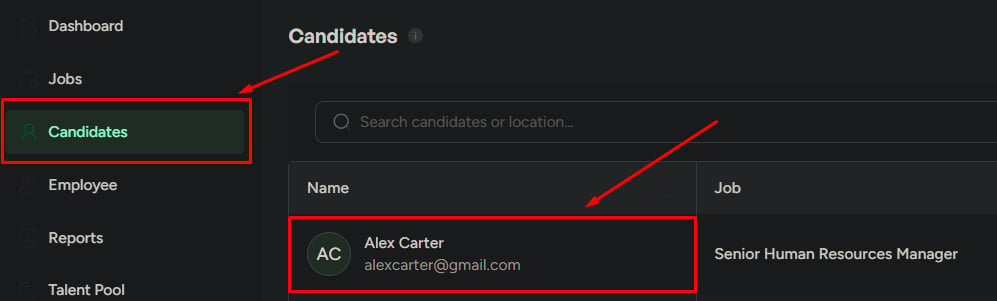
## Open a candidate profile
Go to **Candidates**, or open a job and view candidates in the pipeline.
Click any candidate row to open the details page.
 ## Page layout
The page has three main areas.
Shows identity and current status at a glance:
* Name
* Application stage
* Department
* Email
* Phone number
* Location
The center area contains detailed tabs:
* **Profile**
* **Resume**
* **Activity**
* **Communication**
* **Tasks**
* **Evaluations**
* **Notes**
Always visible for quick actions and context:
* **Overview** (job, stage, status)
* **Evaluations** (view and add)
* **Notes** (view and add)
## Review candidate information
### Profile tab
Assess candidate fit with:
* **Candidate-job match** (AI-based)
* Work experience, education, and skills
* Projects, certificates, and awards
* Professional summary
### Resume tab
View, download, or print the resume for detailed verification.
## Track activity and history
Shows every action related to the candidate. Use this to understand what’s already happened and what’s pending.
View and add internal feedback and comments. Candidates never see notes.
## Manage communication
The **Communication** tab includes:
* **Events** — interviews, calls, and scheduled meetings
* **Emails** — sent and received messages
Use this area to view history, send emails, and track every interaction.
## Manage tasks
In the **Tasks** tab, view assigned tasks and add new ones. Use this to track candidate-related work like reference checks or follow-ups.
## Manage evaluations
The **Evaluations** tab lets you:
* View existing evaluations
* Check pending evaluations
* View results by stage
* Request new evaluations
Request evaluations early in each stage so you have better aggregate scores when it’s time to make a decision.
## Take action
### Top actions (always visible)
* **Move candidate** — advance to the next stage or skip stages
* **Send email**
* **Create event**
* **Assign task**
These cover most day-to-day hiring actions.
## Page layout
The page has three main areas.
Shows identity and current status at a glance:
* Name
* Application stage
* Department
* Email
* Phone number
* Location
The center area contains detailed tabs:
* **Profile**
* **Resume**
* **Activity**
* **Communication**
* **Tasks**
* **Evaluations**
* **Notes**
Always visible for quick actions and context:
* **Overview** (job, stage, status)
* **Evaluations** (view and add)
* **Notes** (view and add)
## Review candidate information
### Profile tab
Assess candidate fit with:
* **Candidate-job match** (AI-based)
* Work experience, education, and skills
* Projects, certificates, and awards
* Professional summary
### Resume tab
View, download, or print the resume for detailed verification.
## Track activity and history
Shows every action related to the candidate. Use this to understand what’s already happened and what’s pending.
View and add internal feedback and comments. Candidates never see notes.
## Manage communication
The **Communication** tab includes:
* **Events** — interviews, calls, and scheduled meetings
* **Emails** — sent and received messages
Use this area to view history, send emails, and track every interaction.
## Manage tasks
In the **Tasks** tab, view assigned tasks and add new ones. Use this to track candidate-related work like reference checks or follow-ups.
## Manage evaluations
The **Evaluations** tab lets you:
* View existing evaluations
* Check pending evaluations
* View results by stage
* Request new evaluations
Request evaluations early in each stage so you have better aggregate scores when it’s time to make a decision.
## Take action
### Top actions (always visible)
* **Move candidate** — advance to the next stage or skip stages
* **Send email**
* **Create event**
* **Assign task**
These cover most day-to-day hiring actions.
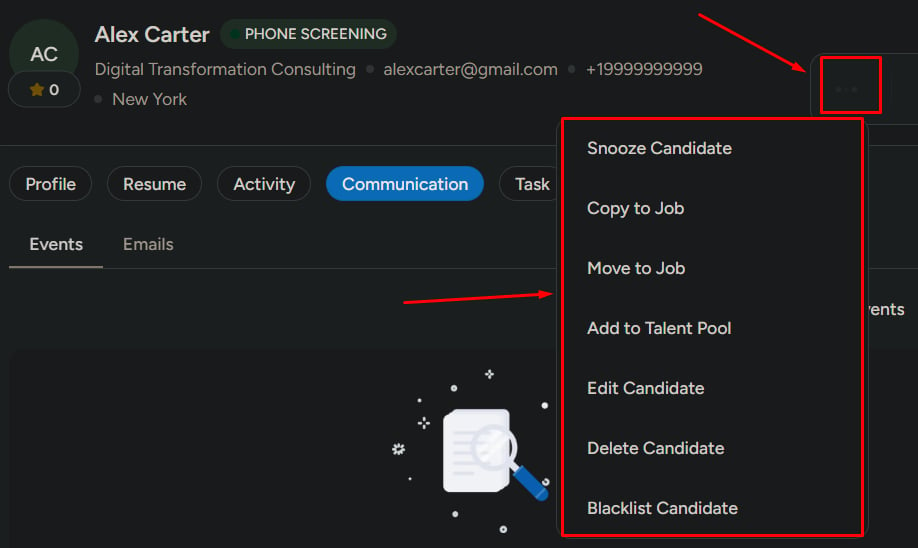
 ### More actions (options menu)
Use the options menu for advanced or administrative actions:
| Action | Effect |
| ----------------------- | ------------------------------------------------------------ |
| **Snooze candidate** | Temporarily pause without losing context |
| **Copy to job** | Add to another job and keep the candidate in the current one |
| **Move to another job** | Move to another job and remove from the current one |
| **Add to talent pool** | Save for future opportunities |
| **Edit candidate** | Update profile data |
| **Delete candidate** | Remove from the system (irreversible) |
| **Blacklist candidate** | Restrict from all future hiring |
### More actions (options menu)
Use the options menu for advanced or administrative actions:
| Action | Effect |
| ----------------------- | ------------------------------------------------------------ |
| **Snooze candidate** | Temporarily pause without losing context |
| **Copy to job** | Add to another job and keep the candidate in the current one |
| **Move to another job** | Move to another job and remove from the current one |
| **Add to talent pool** | Save for future opportunities |
| **Edit candidate** | Update profile data |
| **Delete candidate** | Remove from the system (irreversible) |
| **Blacklist candidate** | Restrict from all future hiring |
 ## Disqualify a candidate
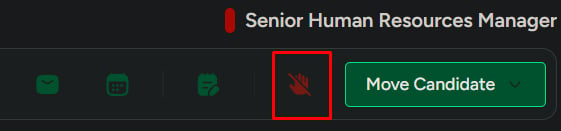
Use this when the candidate should not continue in the current hiring process.
From the candidate profile, click **Disqualify**.
## Disqualify a candidate
Use this when the candidate should not continue in the current hiring process.
From the candidate profile, click **Disqualify**.
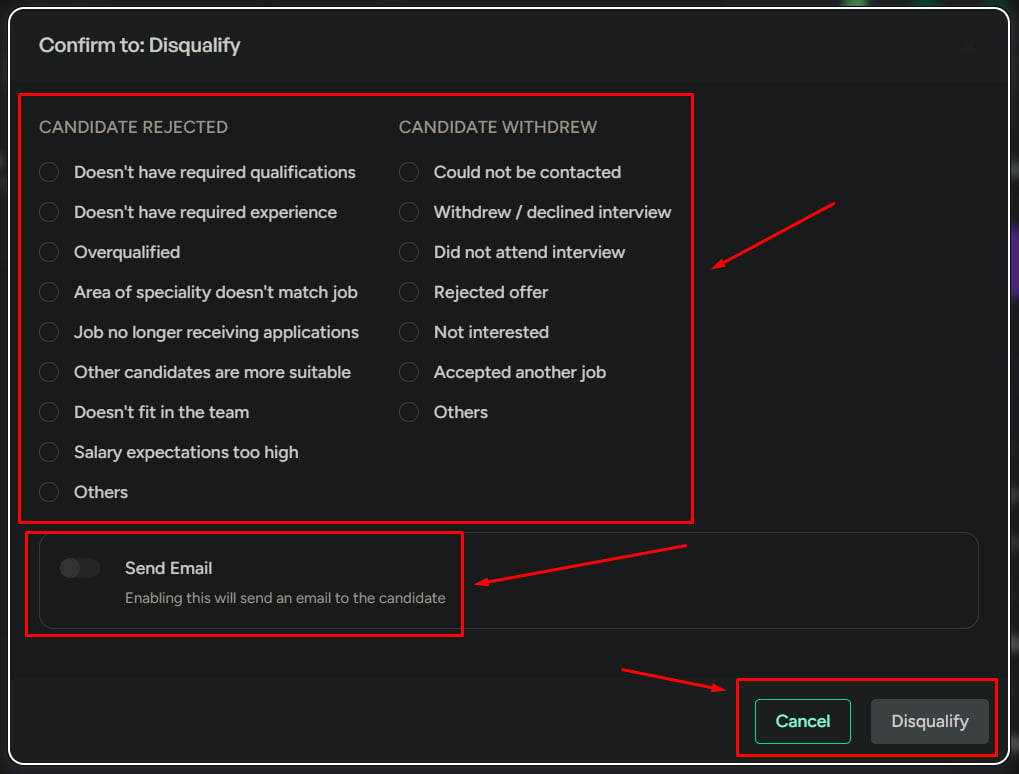
 Pick from the predefined reasons your workspace has set up.
Optionally send a standard rejection email automatically.
The candidate is disqualified from this job but remains in the system.
Pick from the predefined reasons your workspace has set up.
Optionally send a standard rejection email automatically.
The candidate is disqualified from this job but remains in the system.
 ## What to be careful about
Small missteps here have lasting consequences:
* **Moving candidates to the wrong stage** breaks tracking and analytics.
* **Skipping stages** reduces visibility into process compliance.
* **Disqualifying or blacklisting** is hard to reverse — always confirm intent.
* **Missing notes or evaluations** leads to weak hiring decisions.
* **Using “move” when you meant “copy”** misplaces candidates and frustrates teams.
## Related
Take actions within the context of a single job’s pipeline.
Understand the difference and apply the right restriction.
## What to be careful about
Small missteps here have lasting consequences:
* **Moving candidates to the wrong stage** breaks tracking and analytics.
* **Skipping stages** reduces visibility into process compliance.
* **Disqualifying or blacklisting** is hard to reverse — always confirm intent.
* **Missing notes or evaluations** leads to weak hiring decisions.
* **Using “move” when you meant “copy”** misplaces candidates and frustrates teams.
## Related
Take actions within the context of a single job’s pipeline.
Understand the difference and apply the right restriction.